Enable accessibility for the Android Managed Agent
To provide full accessibility when you remote control an Android device, you must enable accessibility permissions for the 247connect Agent in Android settings.
Grant accessibility access to the 247connect Agent
-
Open the 247connect Agent app.
-
The first time you open the 247connect Agent app, an Accessibility Settings prompt appears, tap Go to Settings. If you dismissed the prompt during installation, tap the Settings
 icon and turn on the Accessibility Remote Control toggle.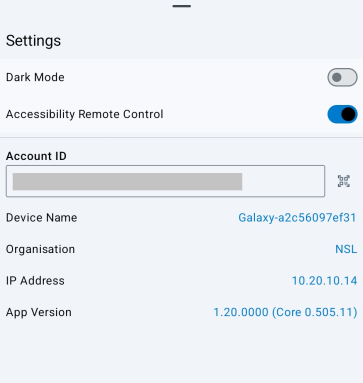
-
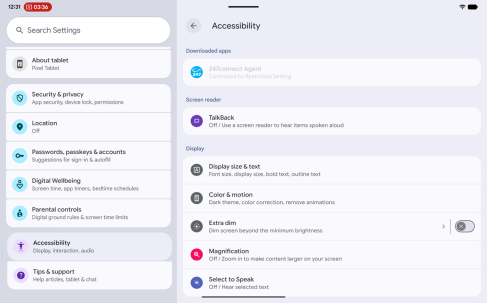
The Accessibility settings open automatically. If they do not, go to Accessibility > Installed apps or Downloaded apps (the name may vary by device).
-
Select 247connect Agent.
-
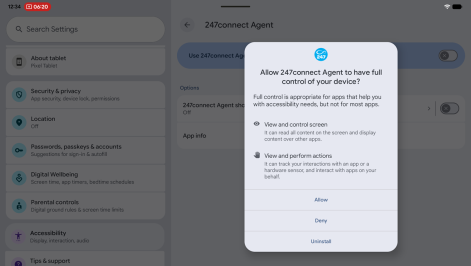
Turn on Use 247connect Agent. When prompted, tap Allow to grant full control of the device.
-
Exit the settings.
The device now has full accessibility permissions and supports remote control through 247connect.


