Install the macOS Managed Agent
The macOS Managed Agent is the component you install on your managed macOS devices that you want to connect to and interact with. After installation, you can manage each device individually or deploy the Agent across multiple devices using your preferred macOS deployment method, such as an MDM solution.
Installer files
-
.pkg file: Required for all installations. This file includes the Agent and your account ID.
-
.mobileconfig file: (Optional) Use this file only for MDM deployments to apply permissions automatically.
System requirements
Operating system: macOS Big Sur version 11 or above.
Disk space: 220MB
Download the macOS Managed Agent application
-
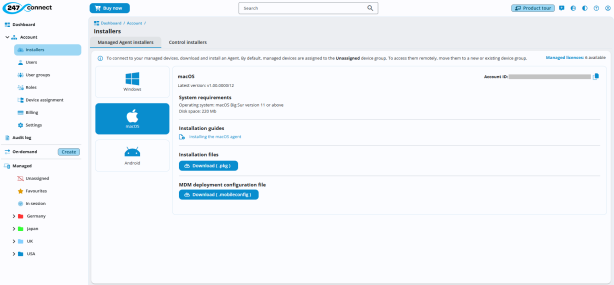
Go to Account > Installers in the side menu.
-
Select the Managed Agent installers tab.
-
Choose macOS.
-
The Installers page displays your account ID. To copy this, click the Copy
 icon.
icon. -
Click Download (.pkg).
The installer downloads to the device and includes your account ID.
Run the installation package
-
Open the downloaded .pkg file to start the installation.
-
Follow the on-screen instructions.
-
When prompted, sign in with your Mac administrator credentials.
macOS permissions and security prompts
The macOS Managed Agent requires specific system permissions to enable full functionality. If using an MDM solution, you can pre-configure these permissions.
Required permissions
The following permissions are required to use the 247connect Agent:
-
Accessibility: Enables control over the keyboard and mouse.
-
Screen recording: Enables recording of the screen.
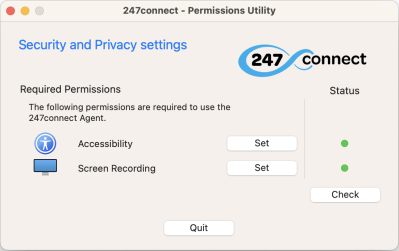
When prompted, you must grant these permissions in System Settings > Privacy & Security. You must sign in with your Mac administrator credentials.
The Agent icon appears in the macOS menu bar. You can access the permissions from here. Click the 247connect icon and select Permissions.
Deploy the macOS Managed Agent using an MDM
If you use an MDM tool to centrally manage your macOS devices, you can deploy the Agent and apply permissions centrally.
-
Go to the 247connect Managed Agent Installers page and select macOS.
-
Download the .pkg file to ensure the package includes your account ID.
-
Click Download (.mobileconfig).
The .mobileconfig file applies the required security permissions automatically when deployed alongside the .pkg file.
See also:
Using Jamf Pro to deploy the macOS Agent


