Reports
Reports provide information about your managed devices, enabling you to identify devices that are unavailable or not running the latest Agent version.
Access reports
-
In the 247connect Web Portal, go to Reports in the side menu.
-
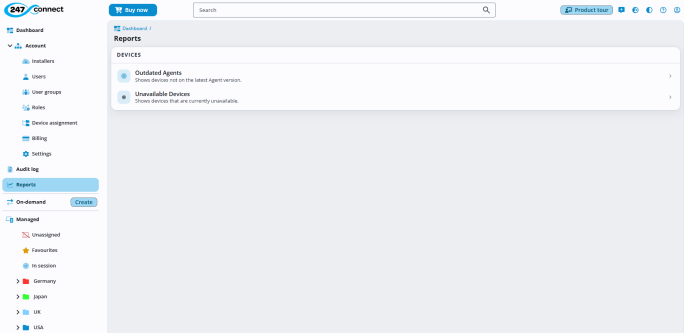
The available reports appear:
-
Outdated Agents: Shows devices that are not running the latest Agent version.
-
Unavailable Devices: Shows devices that have been unavailable for a specified number of days. The default is 90 days.
-
-
Select the report to view.
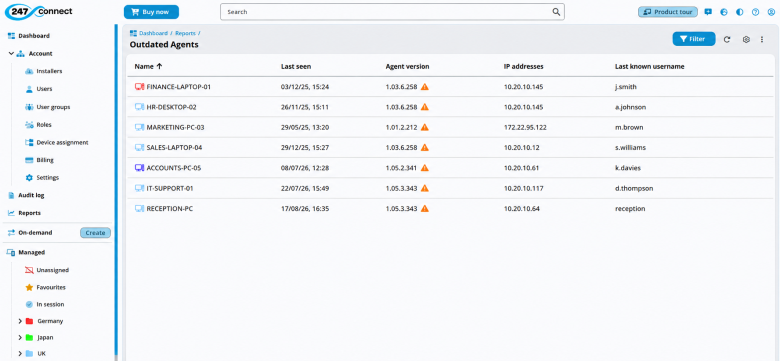
The information displayed depends on the selected report.
You can sort the table by clicking a column header. Click again to change the sort direction. An arrow icon next to the column header indicates the current sort direction.
You can
 icon at the top of the display area. In the Manage columns pane, remove a column by clicking the close
  icon or drag and drop column names to reorder them, then click Save.Note: Locked columns (indicated with a padlock
 icon) can't be removed. To reinstate a removed column, select it from the Add new column drop-down list. To restore the default column layout, click Reset.
You can export the table to a PDF or .CSV file. Click the three dots icon
 at the top right of the display area, then select Export to PDF or Export to CSV. The file is saved in your Downloads folder.
 -
To filter the report, click Filter, select the required criteria and click Apply. To clear all filters, click Reset.
Note: For the Unavailable devices report, use Number of Days Unavailable to specify how many days a device must be unavailable for it to be included in the report. The default is 90 days. -
To update the report data, click Refresh.
-
Select a device to open its device details in a new tab, where you can view detailed device information and its history.
Note: You can delete devices that are no longer required directly from the Unavailable Devices report. Click the Delete icon in the Actions column. To delete multiple devices, select the checkboxes next to each device and click the Delete
  icon in the top right.


