Send a message
 Applies to: iOS Control
Use the Message feature in 247connect to send one-way messages to end users. This is useful for sharing instructions, alerts or important updates.
Send a message
To managed devices
-
Go to Managed in the side menu.
-
Select the device from a device group.
To on-demand sessions
-
Go to On-demand in the side menu.
-
Select the required session.
Click Message in the toolbar.
When using the Web Portal in Safari, click Open when prompted.
Sign in to your 247connect account when prompted.
By default, connecting to an On-demand Agent requires user approval. You can also enable user acknowledgement for Managed Agents in Device group settings. While waiting, you'll see a User Acknowledgement message. Click Cancel to stop the request.
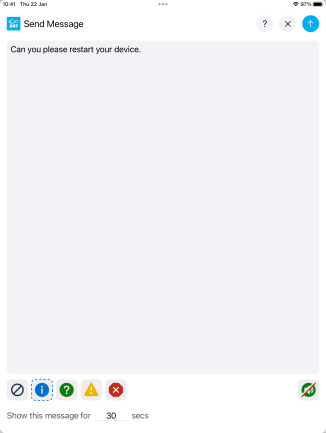
Compose and send your message
-
Type your message in the text box.
-
Select an icon to match the urgency of your message:

No icon is shown. 
Information. 
Question. 
Warning. 
Error. -
(Optional) Include an audible alert to highlight the message. Click the Audio
 icon until it shows as active
  .
. -
(Optional) Set how long the message should appear on the end user's screen (in seconds). If left blank, the message stays on screen until the end user clicks OK.
-
Click the Send
 icon.
icon.
The message appears on the end user's screen.
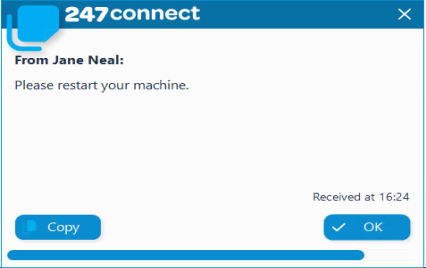
The end user can click Copy to copy the message to their clipboard. Click OK to close the message or it will disappear automatically after the set time.
See also:


