Chat
 Applies to: iOS Control
Use the Chat feature in 247connect to communicate directly with the end user via the Agent running on a device. You can start a chat at any time - either independently or during a remote control session. You can use this feature to request actions, share information or confirm tasks without needing a phone call or another messaging tool.
Start a chat session
For managed devices
-
Go to Managed in the side menu.
-
Select the device from a device group.
For on-demand sessions
-
Go to On-demand in the side menu.
-
Select the required session.
Click Chat in the toolbar.
When using the Web Portal in Safari, click Open when prompted.
Sign in to your 247connect account when prompted.
By default, connecting to an On-demand Agent requires user approval. You can also enable user acknowledgement for Managed Agents in Device group settings. While waiting, you'll see a User Acknowledgement message. Click Cancel to stop the request.
Chat window
The Chat window opens on both your screen and the end user's.
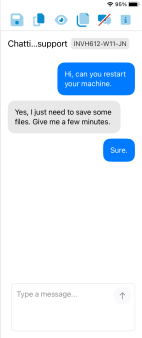
From the toolbar, you can:
-
Save a copy of the chat.
-
Copy the chat text to your clipboard.
-
View the end user's screen.
-
Send a message to the end user.
-
End the chat session.
-
Access the About information and the Information Hub.
Send your message
-
Type your message in the lower pane.
-
Click the Send
 icon.
icon.
Your message appears in the main pane in the Agent’s Chat window.
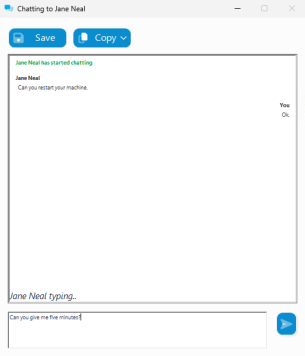
The end user can reply, copy or save the chat or end the session at any time.
Close the chat session
-
Click the Close Chat
 icon in the toolbar.
See also:


