View
 Applies to: iOS Control
With 247connect, you can easily access and monitor your end users using the View feature.
Start a View session
For managed devices
-
Go to Managed in the side menu.
-
Select the device from a device group.
For on-demand sessions
-
Go to On-demand in the side menu.
-
Select the required session.
Click View in the toolbar.
When using the Web Portal in Safari, click Open when prompted.
Sign in to your 247connect account when prompted.
(missing or bad snippet)
The View window
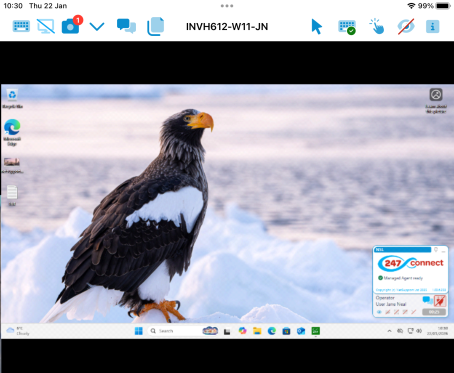
From the View window toolbar, you can:
-
Send Ctrl+Alt+Delete.
-
Blank the end user's screen (Windows Managed Agents only).
-
Choose which monitor to view, if the end user is using multiple monitors.
-
Take a screenshot of the end user's screen.
-
Start a chat with the end user.
-
Send a message to the end user.
-
See the device name.
-
Display the cursor.
-
Show the on-screen keyboard.
-
Access the gesture help guide.
-
End the view session.
-
Access the About information and the Information Hub.
 icon in the toolbar.
Blank the screen
Blank the screen during a View session to prevent end users from seeing any activity while you work. By default, a message appears on their screen stating that a 247connect user is active. You can
-
Click the Blank
 icon in the View window toolbar.
 -
To reinstate the screen, click the Blank
icon again.
Capture the screen
-
Click the Screenshot
 icon in the View window toolbar.
 -
The end user's screen is captured and saved automatically as a .png file in the 247connect Control folder on your device.
Note: An indicator appears on the Screenshot icon, showing the number of screenshots taken (up to nine). -
Click the Drop-down
 icon to open the folder where the screenshots are stored.
Close the Chat window
-
Click the Close
 icon in the toolbar.


