Manage roles
If you have the required permissions, you can open, edit and delete roles as needed.
Edit a role
-
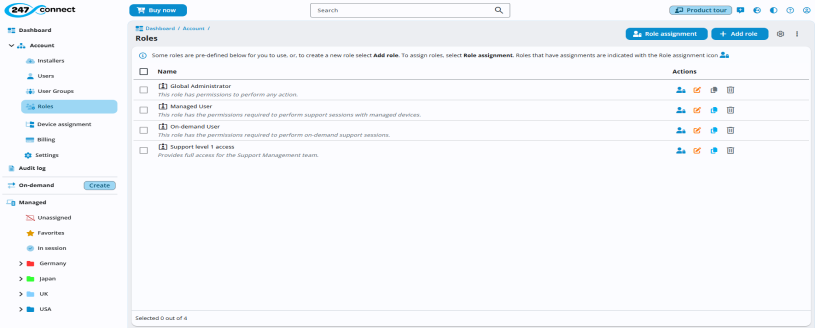
Go to Account > Roles in the side menu.
-
The display area shows a list of roles.
-
Click the required role.
-
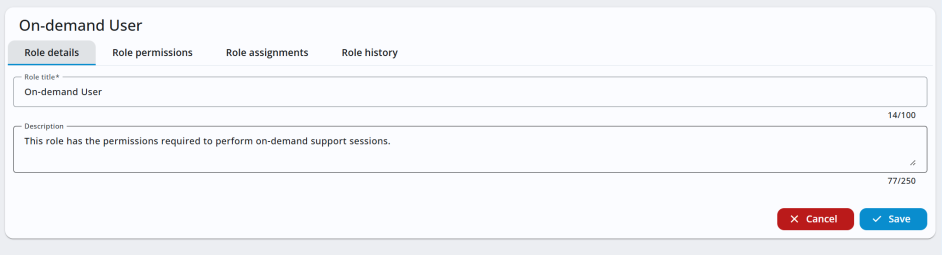
Make the required changes to the role details or permissions. From the Role assignments tab, you can view existing role assignments, create new assignments and update the device groups associated with an assigned user or user group.
-
Click Save.
View role history
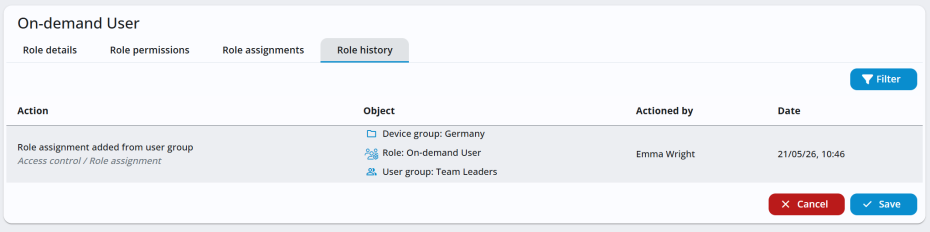
You can view changes made to a role from the Role history tab.
-
Go to Account > Roles in the side menu.
-
Click the required role.
-
Select the Role history tab.
-
The Role history tab displays the role history for the selected role.
Delete roles
You can delete roles individually or in bulk.
-
Go to Account > Roles in the side menu.
-
Click the Delete
 icon next to the role.
Or
To delete multiple roles, select the checkboxes next to each role. To select all roles available for deletion, click the checkbox at the top of the column. Click the Delete
icon in the top right. -
A confirmation message appears. Click Yes.
See also:


