Profile
From here, you can view and update your personal account details, set up two-factor authentication (2FA), change your password, request that your account be deleted and log out of 247connect.
-
Local users can edit their profiles provided the Enable self-service user profile updates is enabled in Settings. If it's not enabled, a user with the right permissions can update your details in Account > Users.
-
A user with the required permissions can view and edit other users from the Users page. This includes managing user details and role assignments.
Access your profile
-
Click the Profile
 icon in the top menu.
 -
Select the Profile tab.
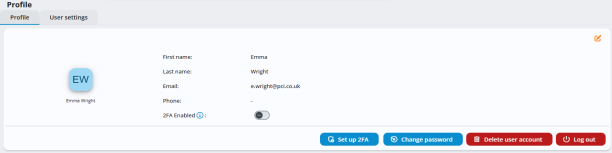
Your profile screen shows:
-
Your registered name.
-
Your linked email address.
-
Your contact number.
-
Your 2FA status (this only appears for local users).
You can turn 2FA on or off using the toggle. When you enable 2FA, you must complete the setup.
-
-
To set up 2FA for your local user account, follow the steps in Setting up two-factor authentication.
-
If you turn off 2FA and it's required for local accounts, you will be prompted to set it up again the next time you sign in.
Edit your details
-
Click the Edit
 icon.
icon. -
Make the required changes.
-
Click Save.
Change your password
-
Click Change password.
-
On the Forgotten your password page, enter your email address and click Reset Password.
-
Open the password reset email and click the link.
-
On the Reset password page, enter and confirm your new password.
-
Click Set Password to save your changes.
Log out
-
Click Log out.
-
You are now signed out of 247connect.
Delete your account
If you want to delete your account, you can send a request to your Global Administrator.
-
Click Delete user account.
-
Click Yes to confirm.
-
An email is sent to the Global Administrator requesting deletion of your user account.
See also:
Manage individual user details
Setting up two-factor authentication (2FA)