Android Managed Agent app
The 247connect Android Agent app enables users to monitor and support managed Android devices using 247connect. Designed for managed environments, the app integrates seamlessly with Microsoft Intune and the Google Admin Console.
You can download the 247connect Agent app from the Google Play Store.
System requirements
-
Android 12 or above.
Features
-
View
-
File transfer
-
Chat
-
Message
247connect Agent app overview
When you open the 247connect Agent app, the Messages screen opens by default.
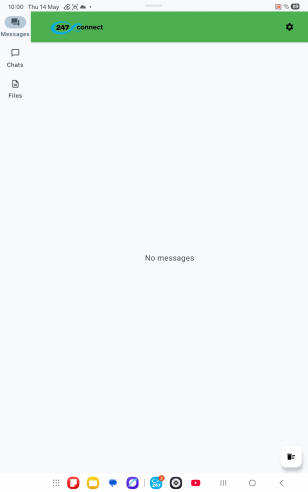
The navigation menu on the left side of the app includes:
-
Messages
-
Chats
-
Files
If end user acknowledgement is enabled, a prompt appears asking you to confirm the connection before a user can connect.
The top of the app turns green when a user is connected.
Settings
To open the settings, tap the Settings  icon in the top-right corner of the app.
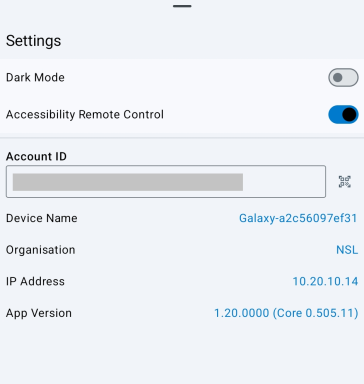
The Settings screen displays the available settings, account ID, device details and when a user is connected, the user’s name. To change the account ID, tap the Scan QR code icon (this is locked if you installed the app using MDM).
From here, you can also:
-
Enable or disable dark mode.
-
View and turn Accessibility Remote Control on or off. See Enable accessibility for the Android Managed Agent for more information.
Messages
When you receive a message from a user, a notification badge appears on the Messages icon in the left navigation menu. The badge shows the number of new messages.
To read your messages, tap Messages in the left navigation menu.
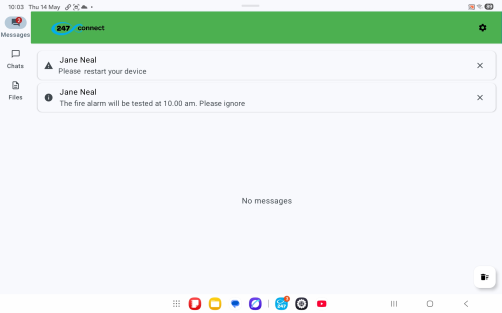
To delete a message, tap the Close  icon.
icon.
To delete all messages, tap the Delete All  icon.
icon.
Files
When a user sends you files, a notification badge appears on the Files icon in the left navigation menu. The badge shows the number of transferred files.
To view the transferred files, tap Files in the left navigation menu.
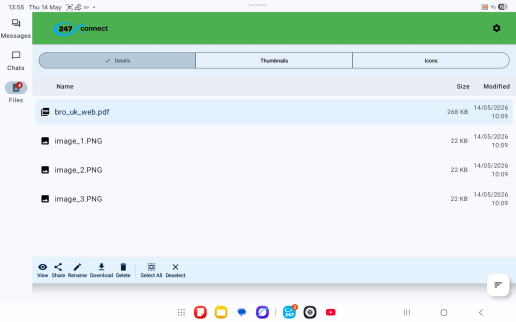
By default, files are shown in details view.
To change the file view, tap Details, Thumbnails, or Icons at the top of the screen.
To sort files, tap the Sort  icon in the bottom-right corner of the screen.
Select one or more files to open the actions menu, where you can view, share, rename, download
Chats
When a user starts a chat session, the 247connect Agent app automatically switches to the Chats tab. You'll see the user's name and any messages.
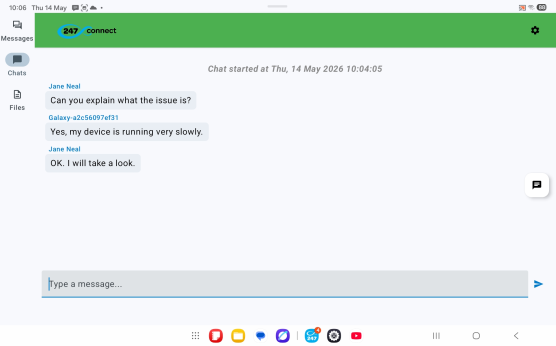
To send a message, type your message in the message field and tap the Send  icon.
icon.
To end the chat, tap the End chat  icon.
icon.
See also:
Install the Android Managed Agent
Deploy the Android Managed Agent using Microsoft Intune
Deploy the Android Managed Agent using the Google Admin Console