Microsoft Graph permissions
247connect uses several Microsoft Graph API features to integrate with Microsoft products. To communicate with the Graph API, the 247connect Enterprise application in Entra needs certain API permissions.
The table below contains information about the required permissions and how 247connect uses them.
Graph permissions
|
Permission name |
Consent type |
Consent description |
247connect feature |
247connect usage |
|---|---|---|---|---|
|
Device.Read.All |
Application |
Enables the app to read properties of devices in your |
Device assignment |
The Device.Read.All permission is used to retrieve information about device groups, so 247connect can automatically assign devices to the correct device group. |
|
Group.Read.All |
Application |
Enables the app to read all groups in your |
Device assignment |
The Group.Read.All permission is used to retrieve the device group details needed to support automatic assignment processes. |
|
Organization.Read.All |
Application |
Enables the app to read |
|
The Organization.Read.All permission is used to retrieve and display the |
|
User.Read |
Delegated |
Enables you to sign in to the app with your |
Authentication |
The User.Read permission is used to retrieve basic details of the user signing in, such as their name. |
Revoking graph permissions
Due to the way Microsoft handles permissions for enterprise applications, when you grant additional permissions to 247connect, all the above-mentioned permissions will be added. If you don't use certain features and you want to revoke specific permissions, you can do this in the Microsoft Entra portal.
-
Go to https://entra.microsoft.com/ and navigate to the 247connect enterprise application. The clientId of this application is 8708fc71-9f71-4ad5-8445-a0746692feeb.
-
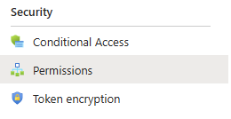
On the left-hand side under Security, select Permissions.
-
For the permissions you don't want to grant to 247connect, click the
 three dots on the right-hand side and choose Revoke permission.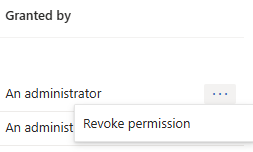
-
Confirm by clicking Yes, revoke.